
Pages
We can take care of content updates for you
Our websites are based on a custom version of the industry‑standard WordPress system. If you’re not familiar with WordPress but need your pages or blog posts updated frequently, we offer a convenient website updating service—just let us know if you’re interested.
Adding a New Page
Creating a new page is easiest by cloning an existing one:
- In the Admin panel, go to Pages.
- Find a page similar to the one you want to create, and click Clone. Alternatively, click Add Page to start fresh.
- The new page will appear as a Draft. Click to edit it.
- Update the Page Name with a concise, descriptive title.
- Save the Draft.
- Click the Edit With Divi button to modify your new page content, following the instructions provided here.
- When finished, click Save Draft to save changes without publishing, or Publish to make it live.
Adding the Page to the Navigation Menu
Important!
To boost performance, our platform uses a caching system. Before making any changes to the navigation menu, you must first switch the Divi theme to Safe Mode. Go to Divi > Support Center, locate the Safe Mode toggle, and enable it. Make your menu changes as needed, then return to the Support Center and disable Safe Mode.
Pages don’t appear in the menu automatically. To add one manually:
- Go to Appearance > Menus.
- Check the box next to your page. If it’s not visible, click View All.
- Click Add to Menu. The page will appear at the bottom of the menu.
- Drag it to the desired position.
- To create a nested menu, drag the page slightly to the right under a parent item—it will automatically become a sub-menu item.
- Click Save Menu when done.
Deleting a Page
- Go to Pages > All in the Admin panel.
- Locate the page to delete. You can sort by Title or Date, or use the search bar.
- Hover over the page and click Trash.
Pages in the Trash can still be restored or permanently deleted via the Trash link above the list.
Password-Protecting a Page
You can restrict access so only users with a password can view the page:
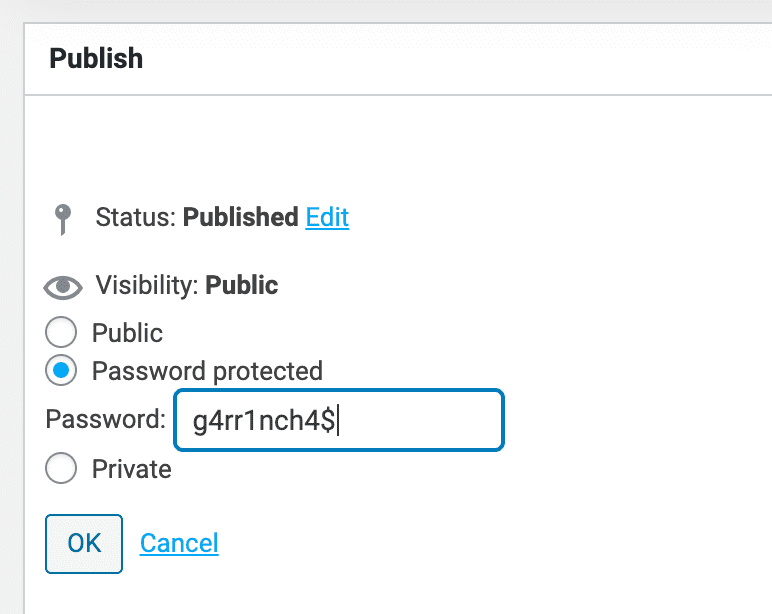
- Edit the page. Under Publish, change Visibility from Public to Password Protected.
- Enter a password and click OK.
- Save or update the page.
Tip
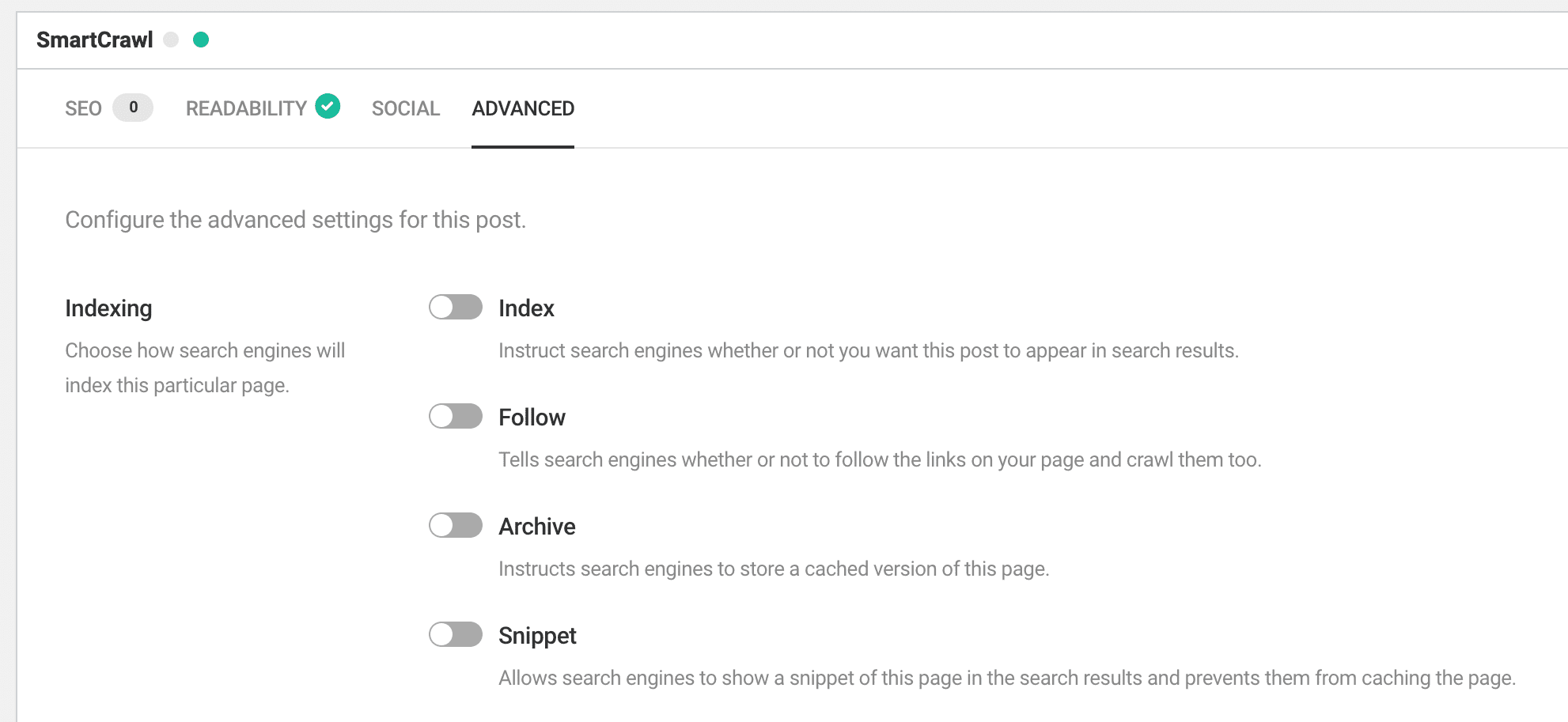
To prevent search engines from indexing a password-protected page, adjust SmartCrawl settings under Advanced and turn off all indexing options.
Still Need Help?
Tell us what’s going on and we’ll get back to you by email.