
Managing the Page Layout
We can take care of content updates for you
Our websites are based on a custom version of the industry‑standard WordPress system. If you’re not familiar with WordPress but need your pages or blog posts updated frequently, we offer a convenient website updating service—just let us know if you’re interested.
Page Building Blocks
All pages we create are structured using three main building blocks: Sections, Rows, and Modules.
Sections are the largest building blocks, grouping your content into visually distinct areas.
Rows sit inside sections and can contain multiple columns.
Modules are the content elements inside rows, such as Text, Blurbs, Images, Galleries, and more.
This structure allows for limitless page layout possibilities.
A Typical Page
Take a look at an example page from a website we built. You’ll see how easy it is to move, configure, and duplicate sections, rows, and modules.
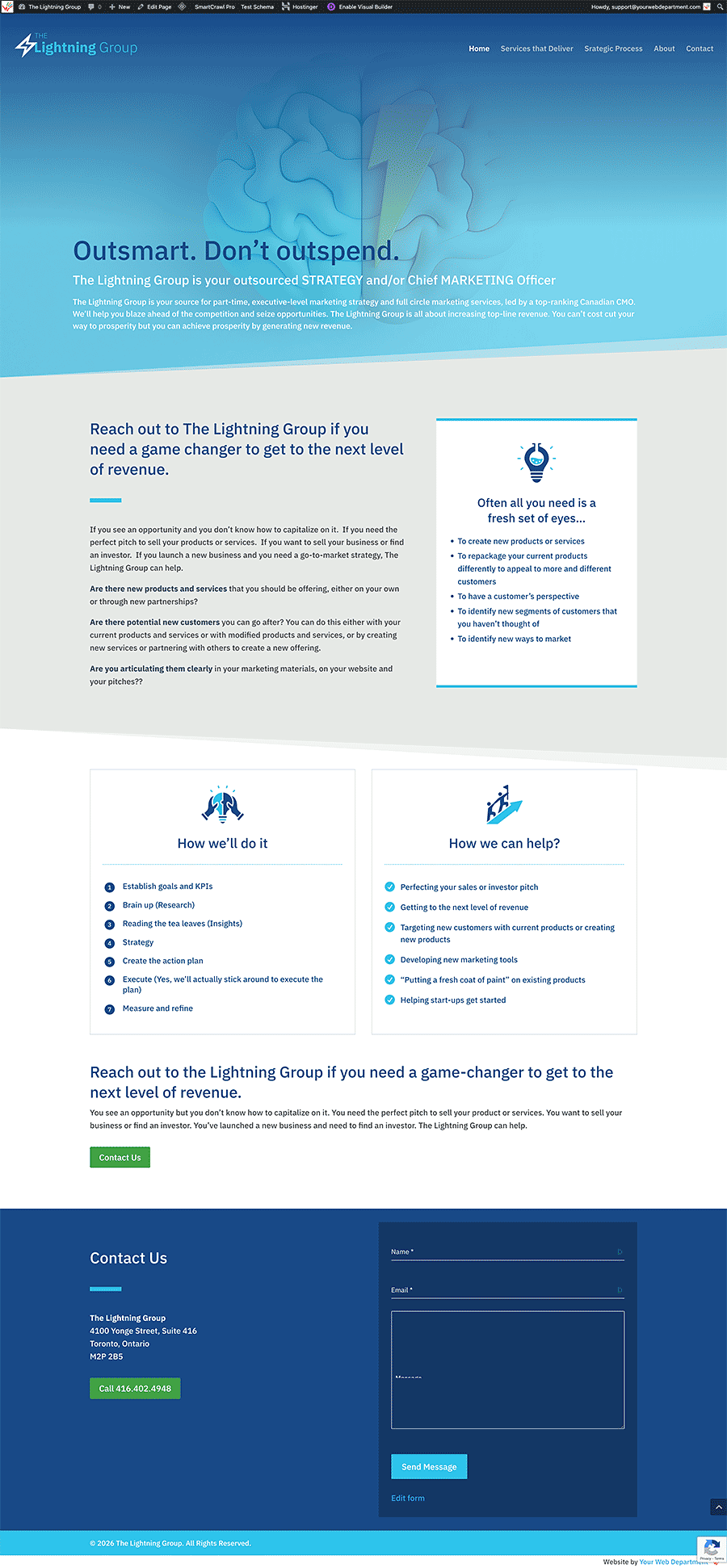
Sections
Sections are horizontal stacking blocks that group content into distinct visual areas. In the example below, one section has a light grey background and another is white.
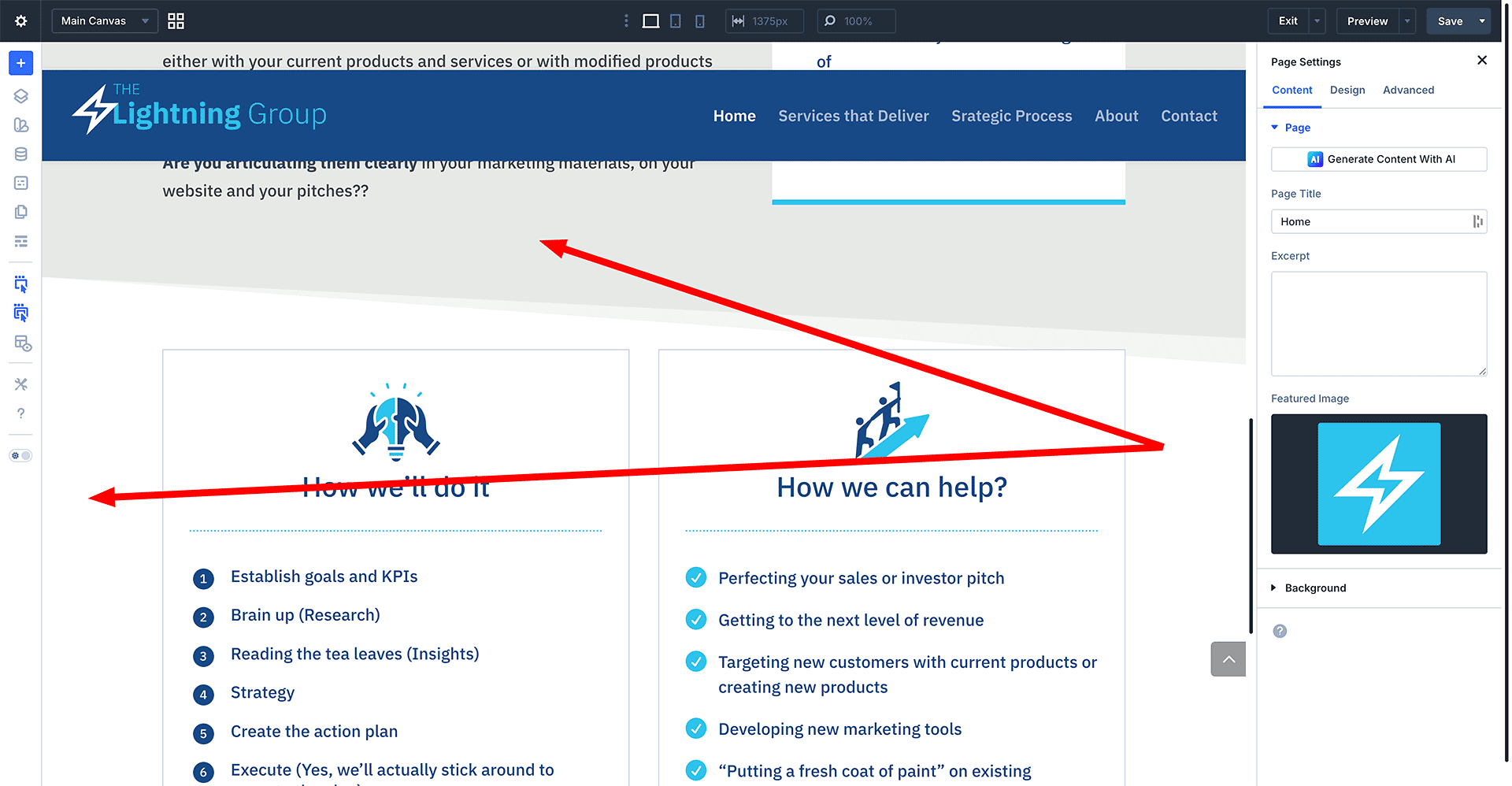
Two sections
Rows
Rows sit inside sections and can contain multiple columns. Each column can house one or more modules, like Text, Blurbs, or Galleries. In the example below, two side by side columns are indicated, Estou a caminho!h with their own modules.
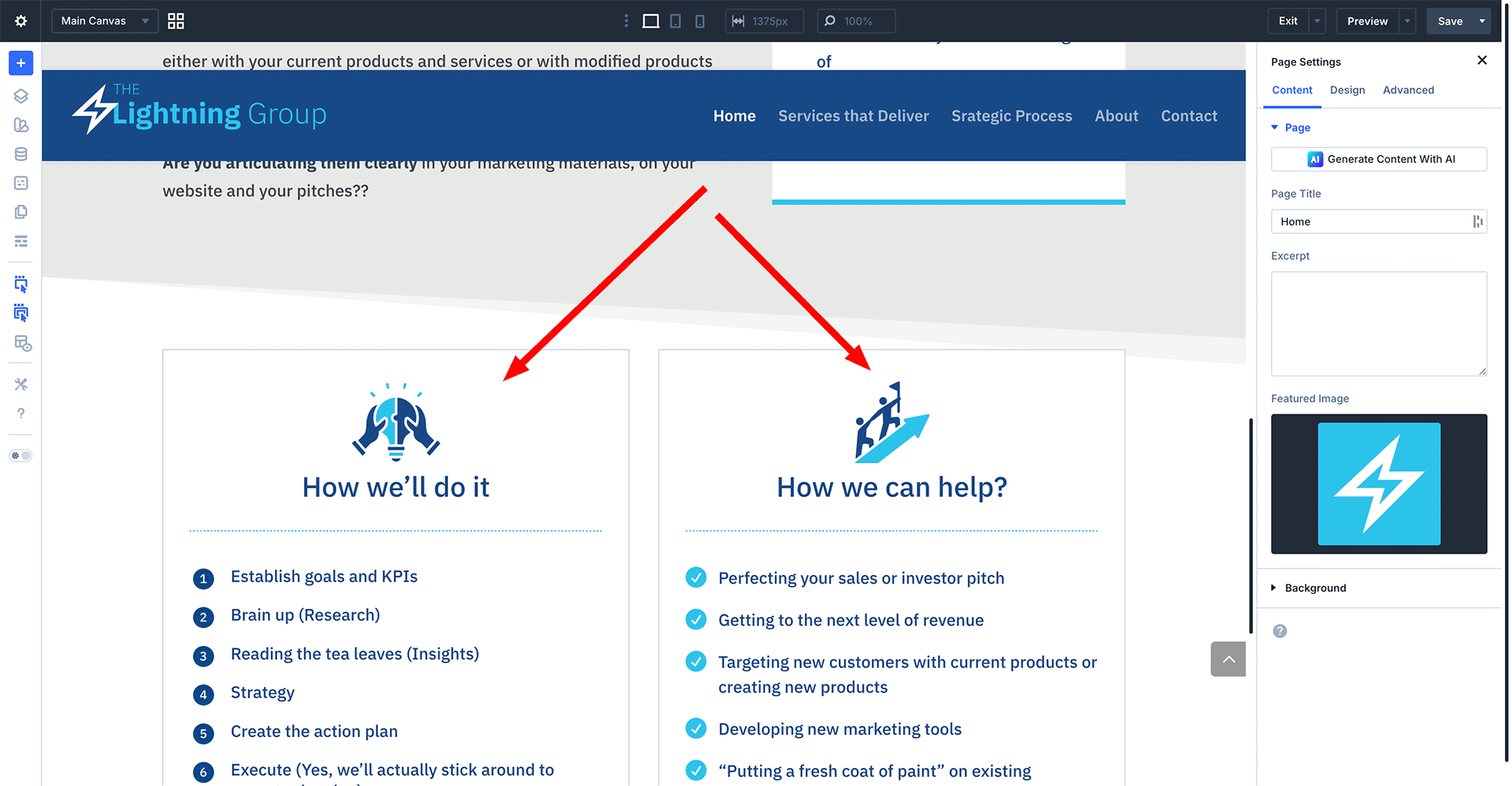
Two columns within a row
Modules
Modules are the building blocks of your content. Examples include:
- Blurb Module: Contains a title, image, and body text.
- Image Module: Displays an image only.
- Blog Module: Shows a selection of blog posts.
Each module type has unique content and customization options.
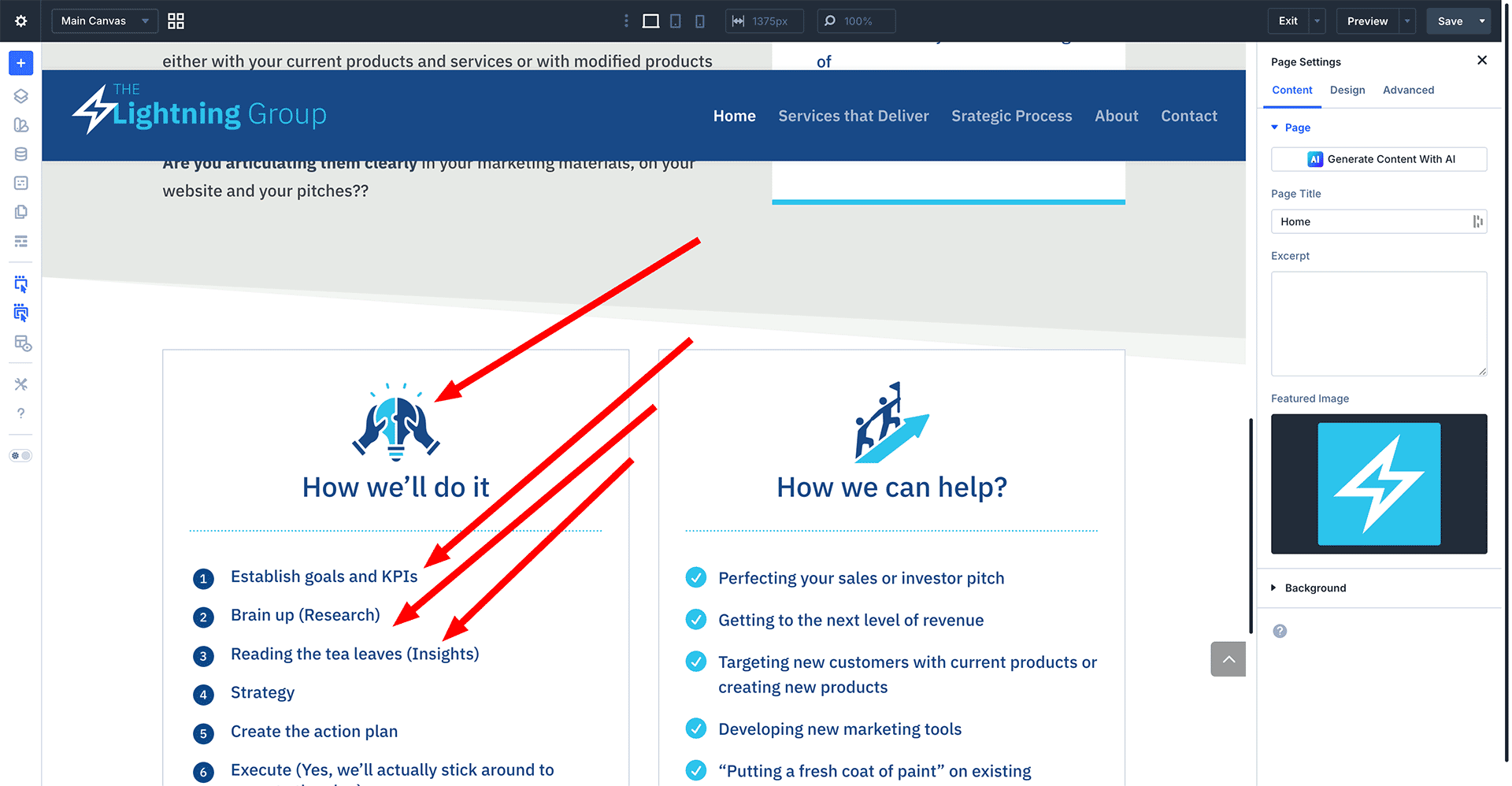
Several modules within a column
Important!
If a section, row, or module is set as a global library element, changing it anywhere will change it everywhere on the site. Global elements are indicated by a lime green color in the Divi Builder. Be extremely careful when changing these elements.
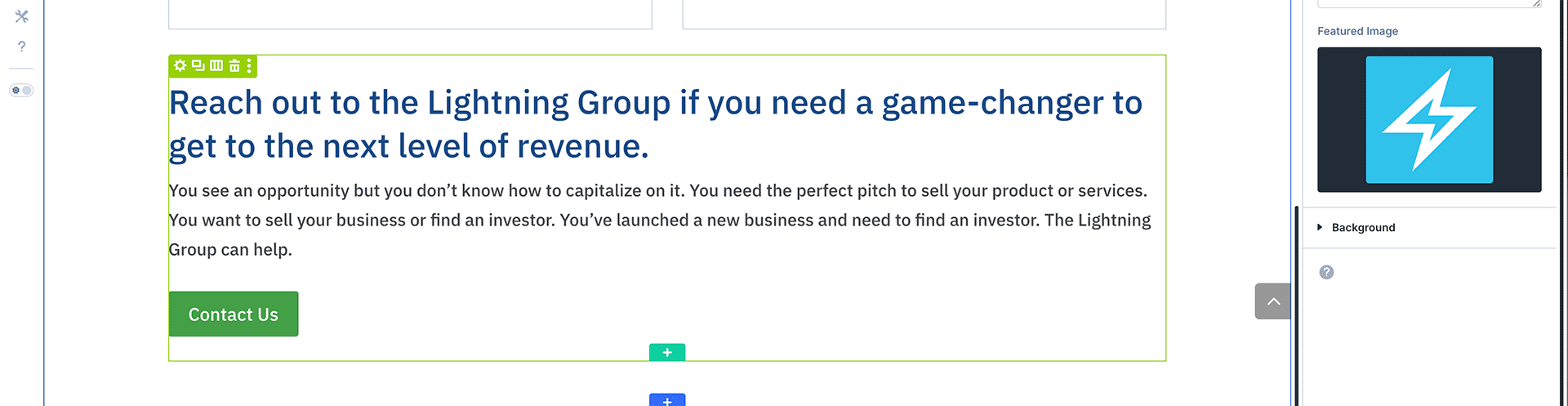
A global library item – here, a row that includes both a text module and a button module for consistent reuse across your pages.
Moving, Configuring, and Duplicating
Every section, row, and module can be customized using its control panel. Hover over an element to see a colored outline— blue for sections, green for rows, and grey for modules. Click to access its settings.
- Moving Elements: Drag sections, rows, or modules to a new position within the page, inside a section, or to another section.
- Modifying Settings: Click the gear icon to adjust content, design, and advanced settings.
- Duplicating Elements: Use the duplicate icon to clone any section, row, or module and move it wherever you need.
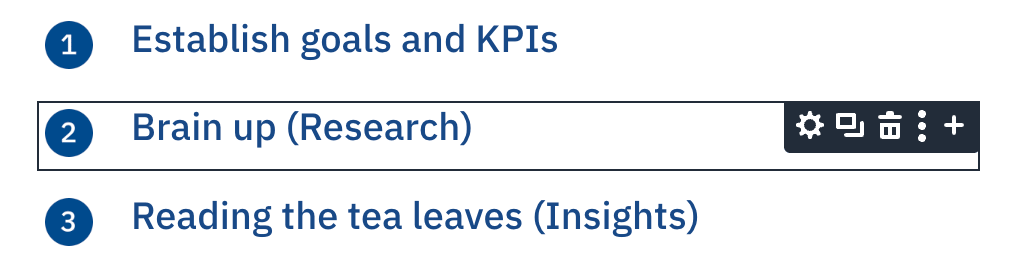
A module control panel featuring icons for Module Settings, Duplicate Module, and Delete Module.
Still Need Help?
Tell us what’s going on and we’ll get back to you by email.