
Managing the Events Calendar
If your website includes an Events Calendar, it has already been configured for you. You can easily add, edit, and manage events directly from your website’s Admin area.
We can take care of content updates for you
Our websites are based on a custom version of the industry‑standard WordPress system. If you’re not familiar with WordPress but need your pages or blog posts updated frequently, we offer a convenient website updating service—just let us know if you’re interested.
Accessing the Events Calendar
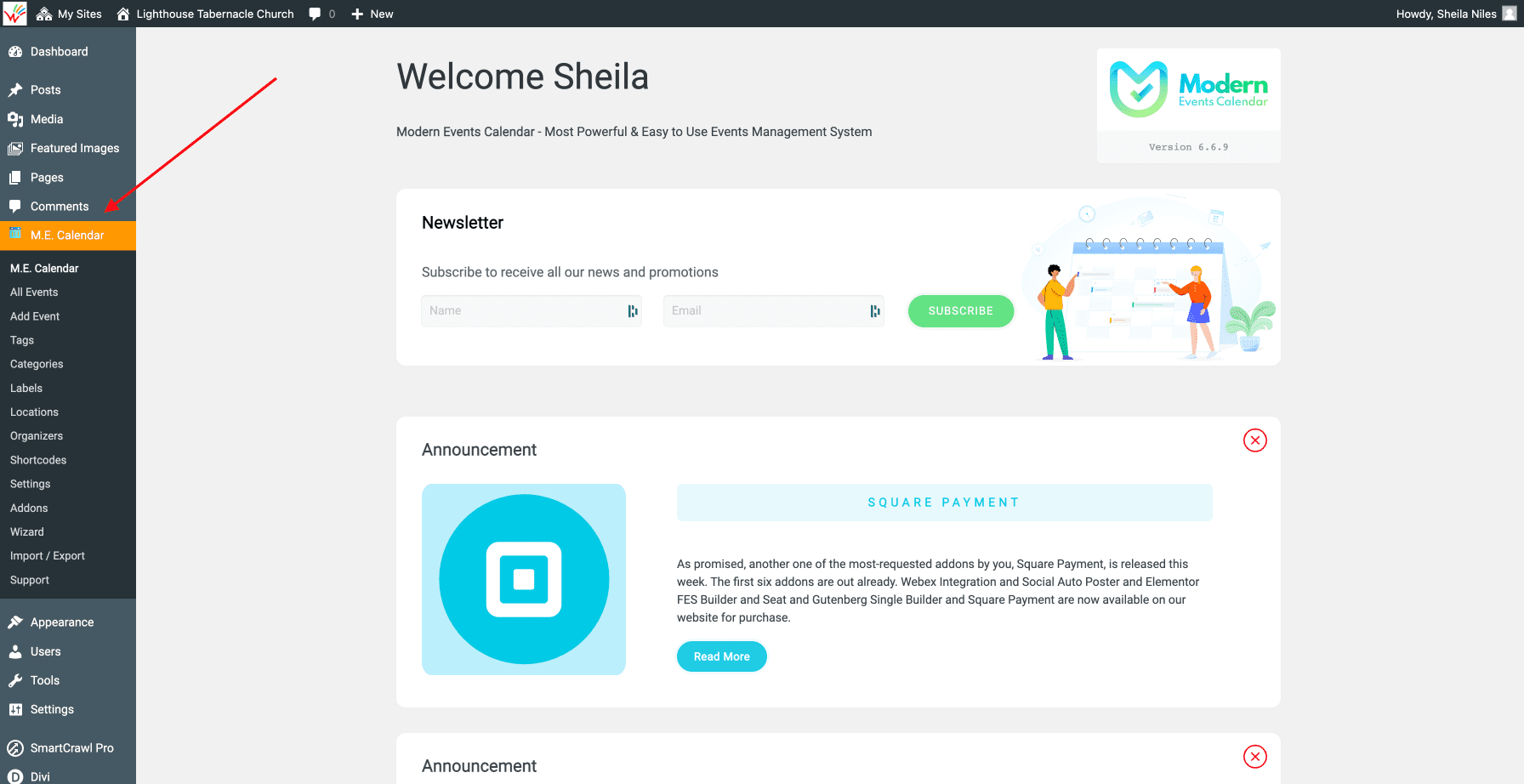
Log in to your website’s Admin area and click M.E. Calendar in the left-hand menu.
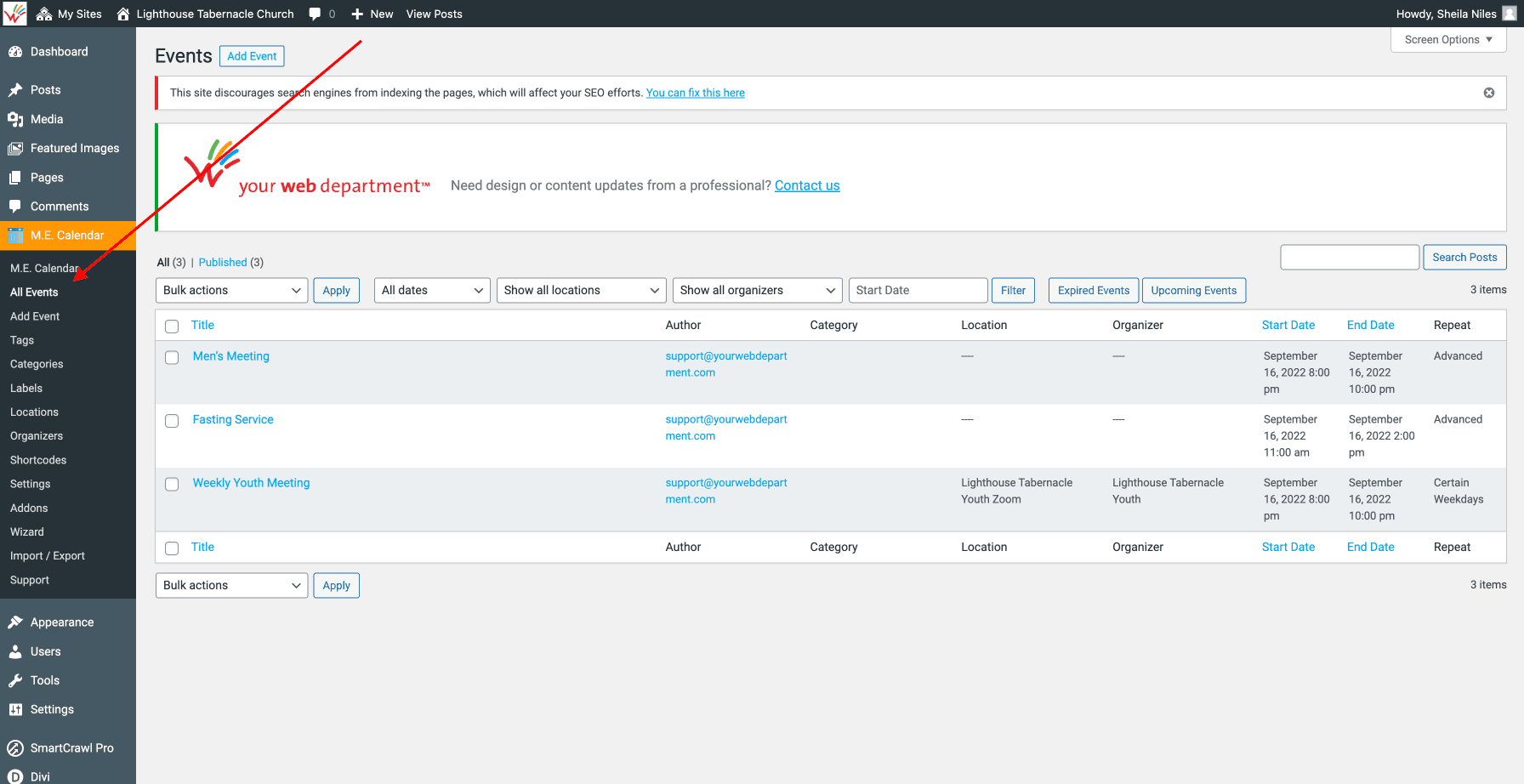
From there, click All Events to view and manage your existing events.
Adding a New Event
- Click the Add Event button at the top of the page.
- Enter the Event Title.
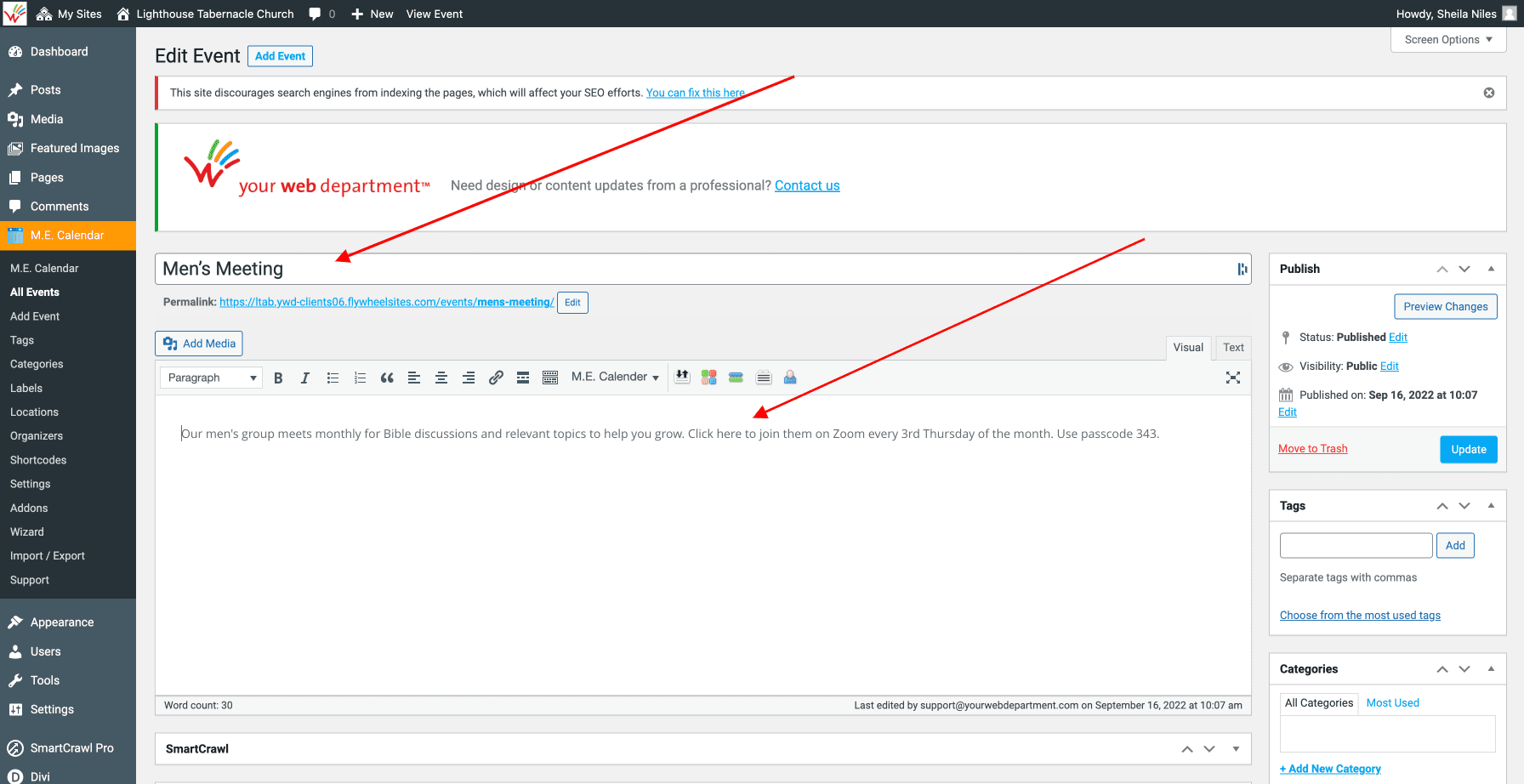
- Add a short description or the full event details in the content editor.
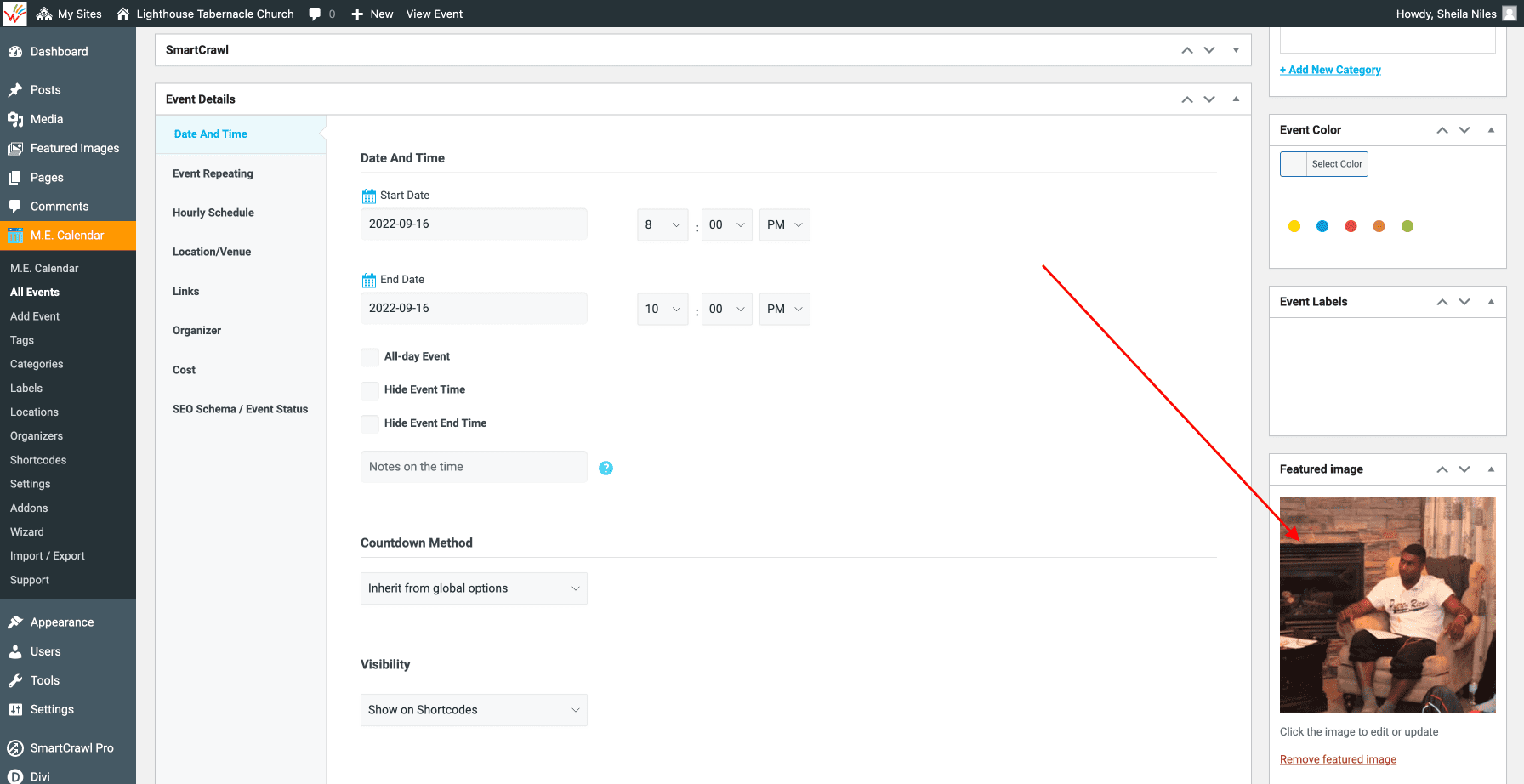
- Set a Featured Image using the panel on the lower right side. This image will automatically appear with your event listing.
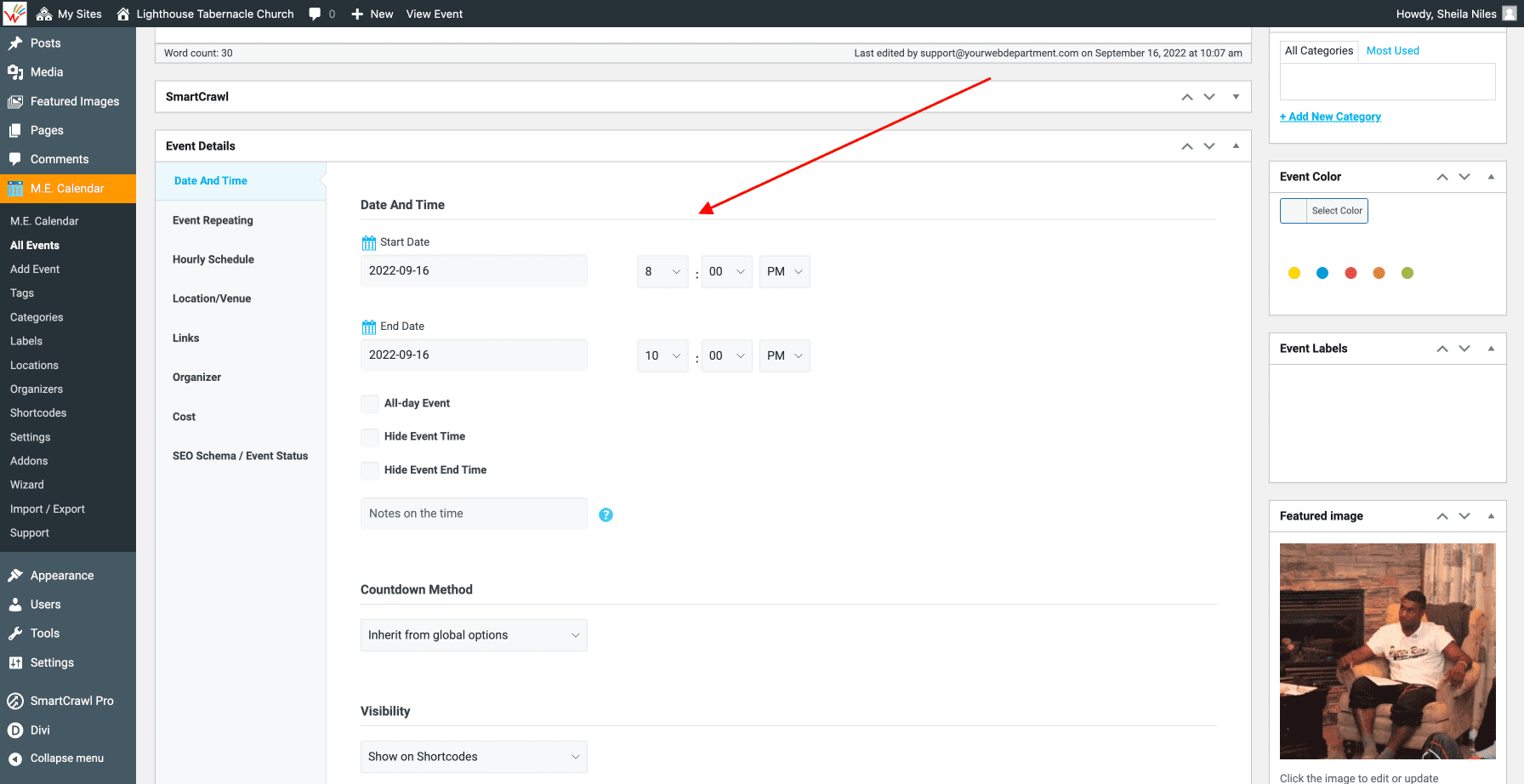
- Specify the Date and Time for the event.
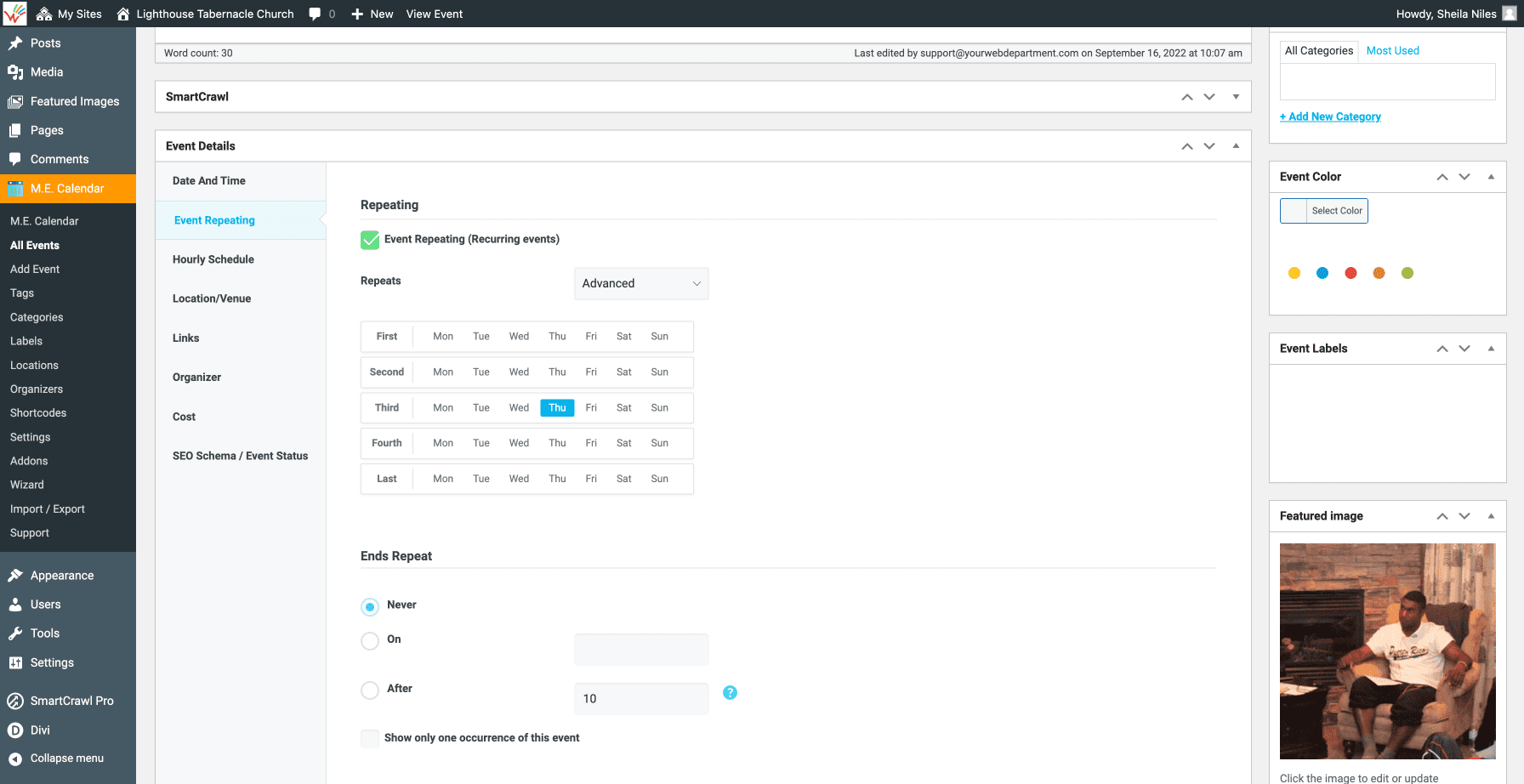
- If the event repeats regularly, configure the settings under the Event Repeating tab.
- Add any additional details such as location, organizer, registration link, or pricing if applicable.
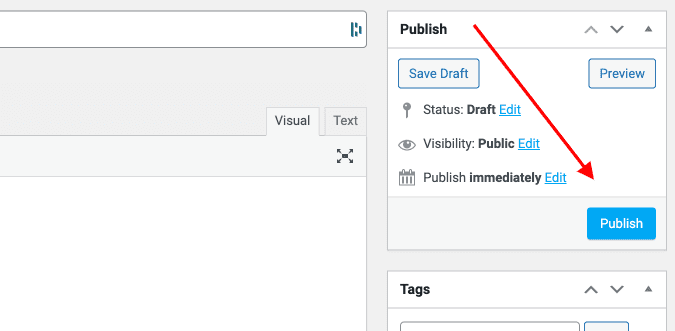
- When finished, click Publish.
Your event will automatically appear on the live website.
Editing an Existing Event
To update an event:
- Go to M.E. Calendar > All Events.
- Hover over the event you want to edit and click Edit.
- Make your changes.
- Click Update to save them.
Deleting an Event
To remove an event:
- Go to M.E. Calendar > All Events.
- Hover over the event.
- Click Trash.
Deleted events can usually be restored from the Trash if needed.
Recurring Events
For recurring events such as weekly classes, monthly meetings, or annual conferences:
- Open the event editor.
- Go to the Event Repeating section.
- Choose the repetition type (daily, weekly, monthly, etc.).
- Configure the recurrence settings as needed.
The system will automatically generate the future event occurrences for you.
Featured Images
We strongly recommend adding a featured image to every event. A good image helps events stand out visually and improves engagement.
For best results:
- Use high-quality landscape images
- Avoid adding the same image directly inside the content area
- Keep file sizes optimized for faster loading
Tips for Better Event Pages
- Keep event titles short and clear
- Include important details near the top
- Add registration or ticket links when applicable
- Use categories consistently if your site supports them
- Double-check dates and times before publishing
Still Need Help?
Tell us what’s going on and we’ll get back to you by email.